This article shows you how to make phone calls using your computer instead of using the physical phone on your desk. It explains how to call people inside and outside the school, pause a conversation while doing other work, and let someone else pick up when you can't answer.
Making Calls (Inside or Outside)
Open Microsoft Teams on your computer. Look for and click the Calls tab on the left-hand side panel.
Now choose how to dial:
-
Type a Number: Click the number buttons with your mouse OR type the full phone number using your keyboard (for people outside school).
-
Use Extensions: Type just the four digit extension of the department or person you are looking for on campus (like using a nickname instead of a long street address).
-
Search by Name: Start typing someone's first or last name in the search box. Click their profile icon with their name when it pops up to start ringing their office instantly—no number needed!
Putting Someone on Hold
When talking, sometimes you need to put someone on hold.
-
Find the Hold button on your screen's top panel and click it when you need to step away briefly.
-
When ready to talk again, look for the Play button that appears and tap it to resume.
Passing a Call (Transferring)
Send your conversation to another colleague using one of these two simple ways:
-
Simply Transfer:
-
Click the Transfer button
-
b. Click the Transfer from the dropdown.
c. Type the name or number of the colleague you would like to transfer to.
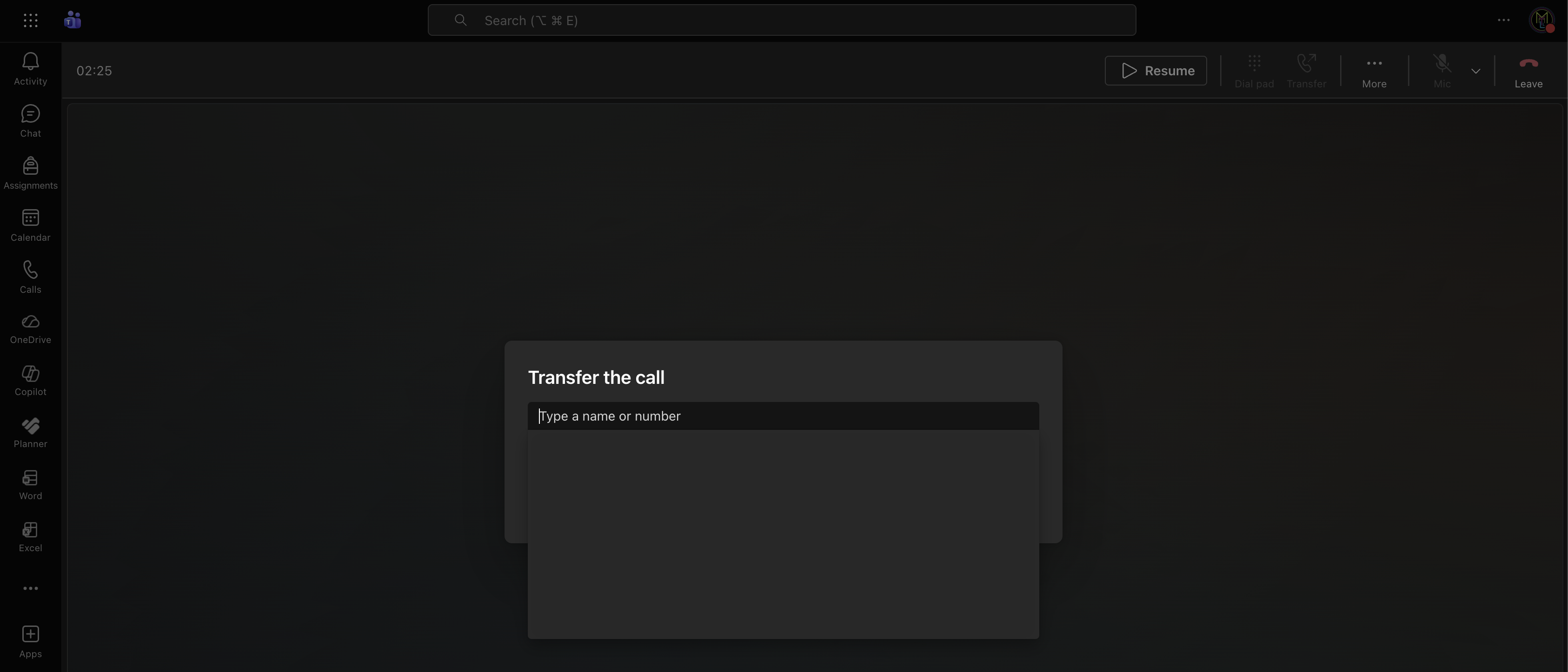
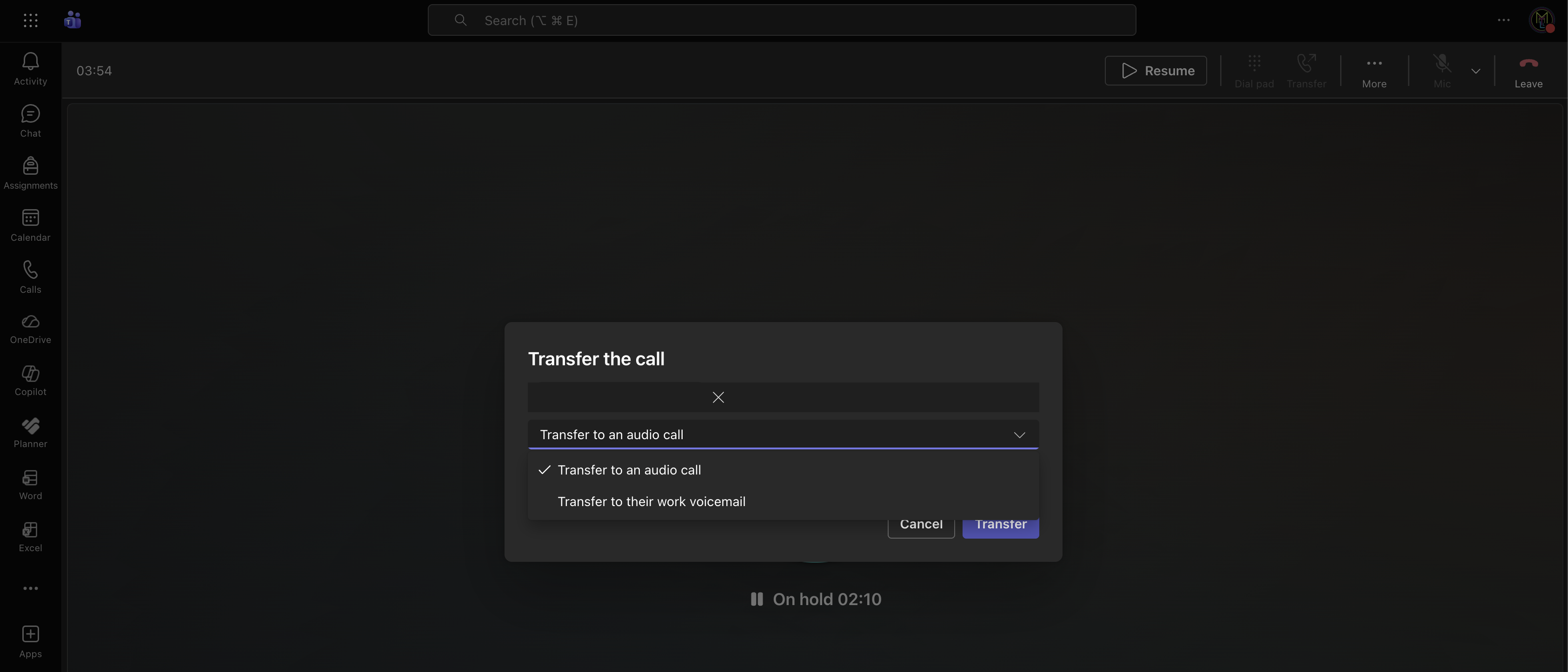
d. Once you have found where you would like to transfer the person to, you can click on the dropdown that appears and choose whether to transfer to an audio call or transfer to their work voicemail. Then click Transfer.
2. Chat First Then Pass:
a. Click on the Transfer button.
b. Then click Consult then transfer.
c. Type the name or number of the colleague you would like to consult with before transferring. You can choose to either start a call with said colleague or open a chat with them. After you are finished you can transfer the call to them by clicking the transfer button on the top right hand corner.

Moving Your Call to Your Phone
If you're talking on your computer but need to stand up and walk down the hall to your classroom, pick up your mobile phone and open the Teams app.
-
Open Microsoft Teams on your phone. This is the same app you use for school meetings and chats.
-
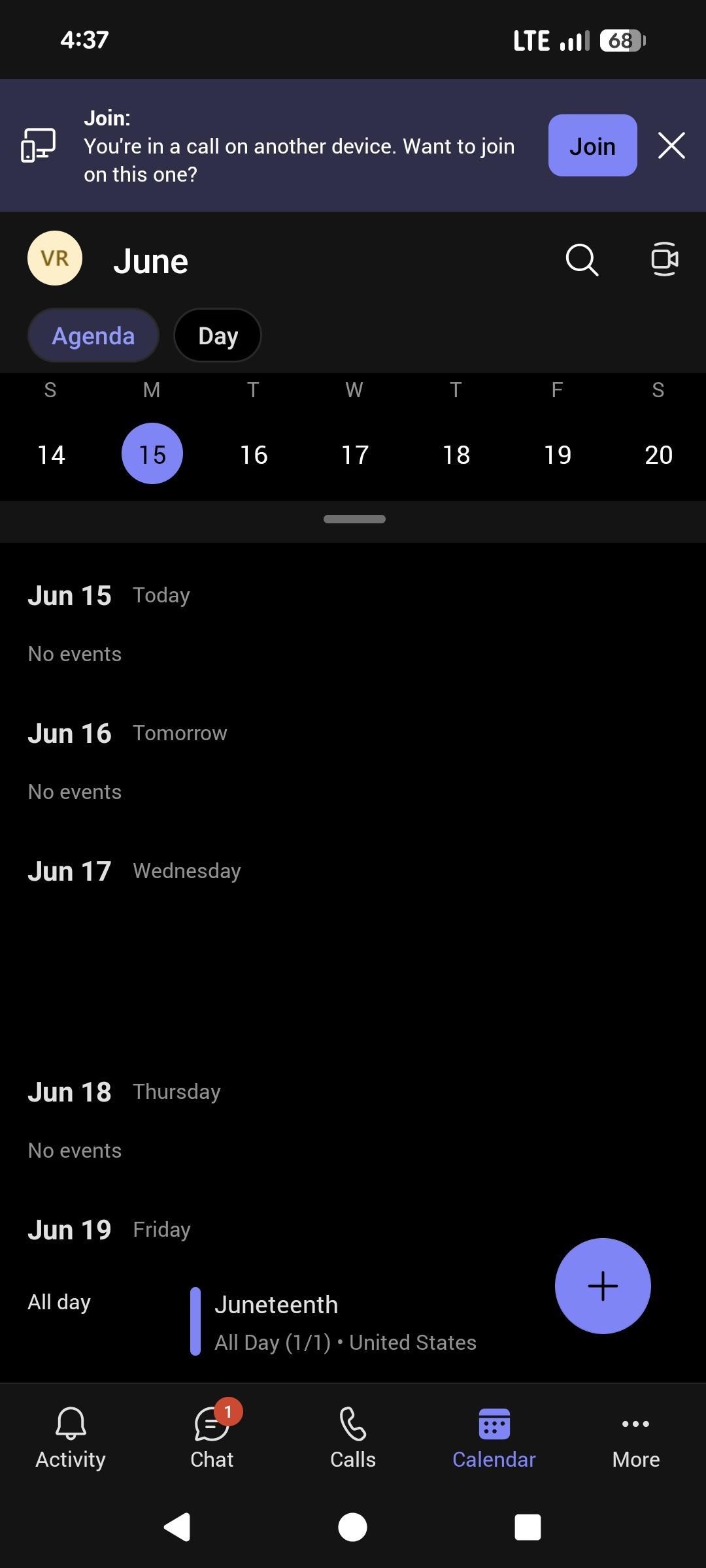
A purple bar will appear at the very top saying: "Join: (the number that is on the call) You’re in a call on another device. Want to join on this one?" Tap the Join button.
-
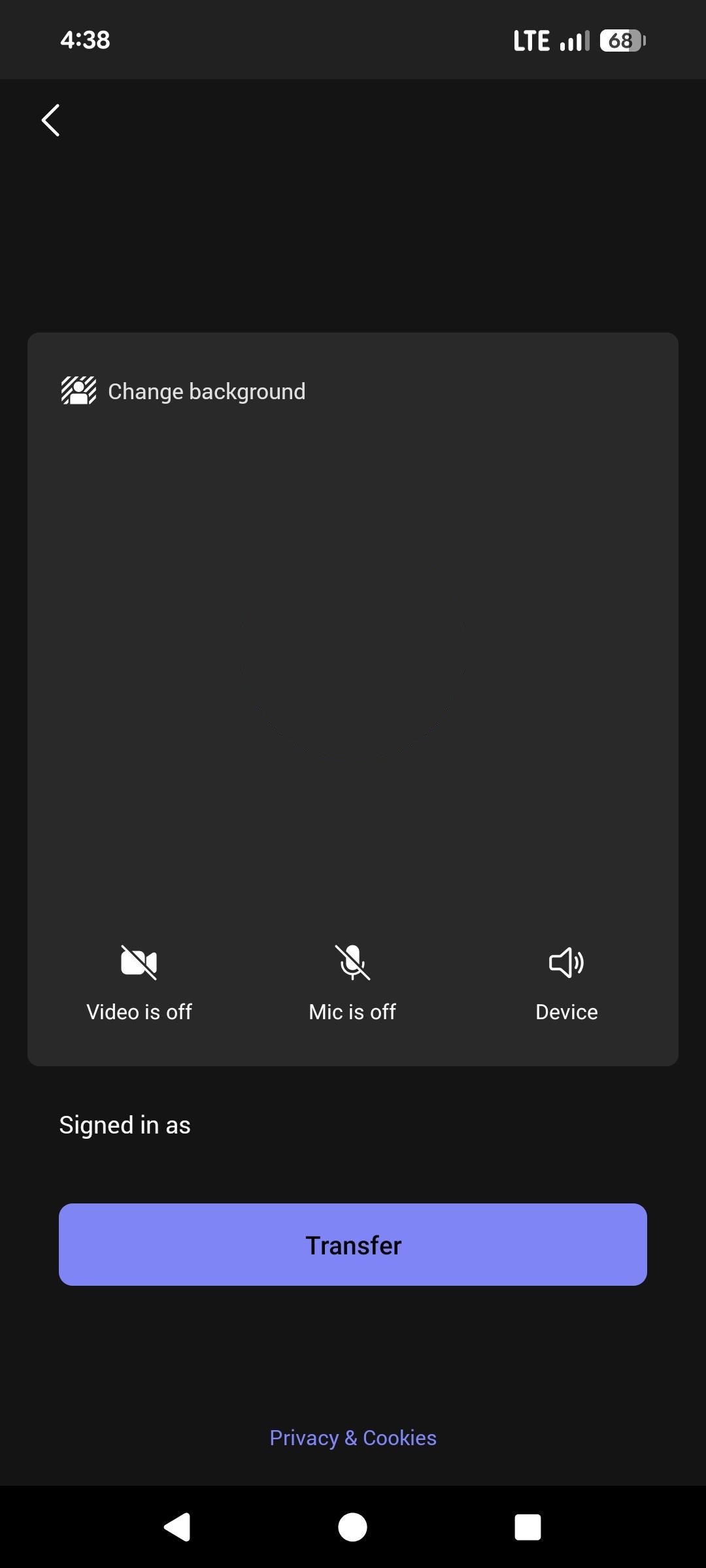
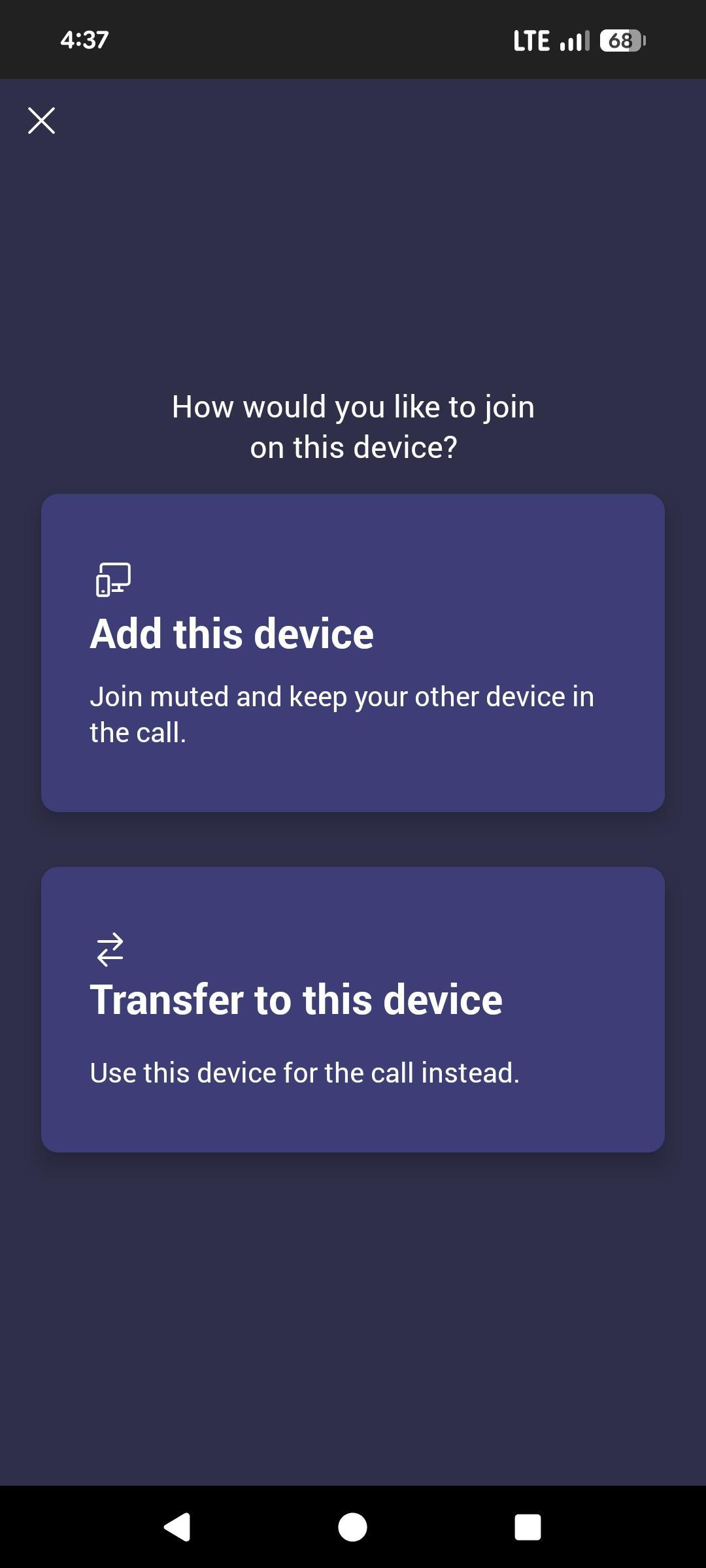
Choose how to connect. You will see options for adding the device or transferring to this device. Select "Transfer to this device" so your phone becomes the main way everyone talks.
-
Now click on the transfer under where it says “Sign in as” and you have now successfully transferred the call from the computer to your phone.