
Our New Phone System at PCCC
-
What Changed?
Your school phones used to be tied to one desk. If you weren't sitting there, your number wouldn't work. Now we're using Microsoft Teams Voice—a modern phone system that lives in the Microsoft Teams app. You can answer calls from your office computer, home laptop, or mobile app.
-
What Stayed the Same?
Your 10-digit outside number is unchanged.
Inside the college, you still dial just four numbers (your extension).
Outside callers reach you exactly as before—no special instructions needed.
-
Do You Need New Software?
No. If you already use Microsoft Teams for department meetings or chats, your phone feature is built into that same app. Simply open Teams and look under the "Calls" tab.
Setting Up Your Office Phone with Microsoft Teams Voice
The IT team has updated your desk phone with Microsoft Teams Voice to get it ready for you. To make the phone belong to you, simply enter the nine-character security code shown on its screen. You won't need to type your long email or password using those tiny buttons—you'll complete that step on your computer instead.
Step 1: Wake The Screen
-
Press the button below the display, or pick up the receiver to turn the screen on.
Step 2: Your Phone Code
-
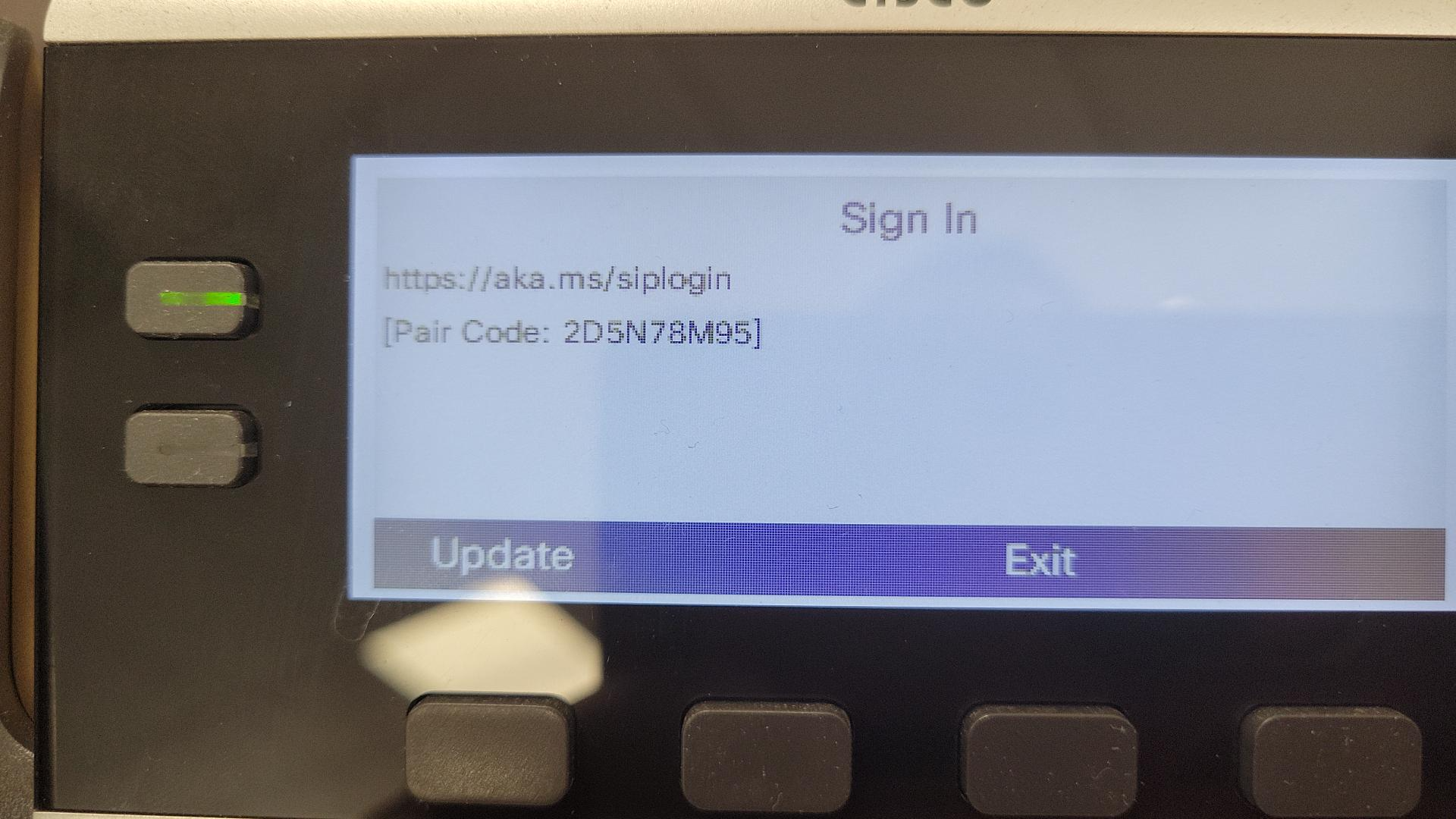
If you see a nine-character code (like ABC-DEF-GHI), write it down. This is your phone's temporary password for Microsoft Teams Voice.
-
If the screen is dark, wake it first by pressing any button or lifting the receiver.
-
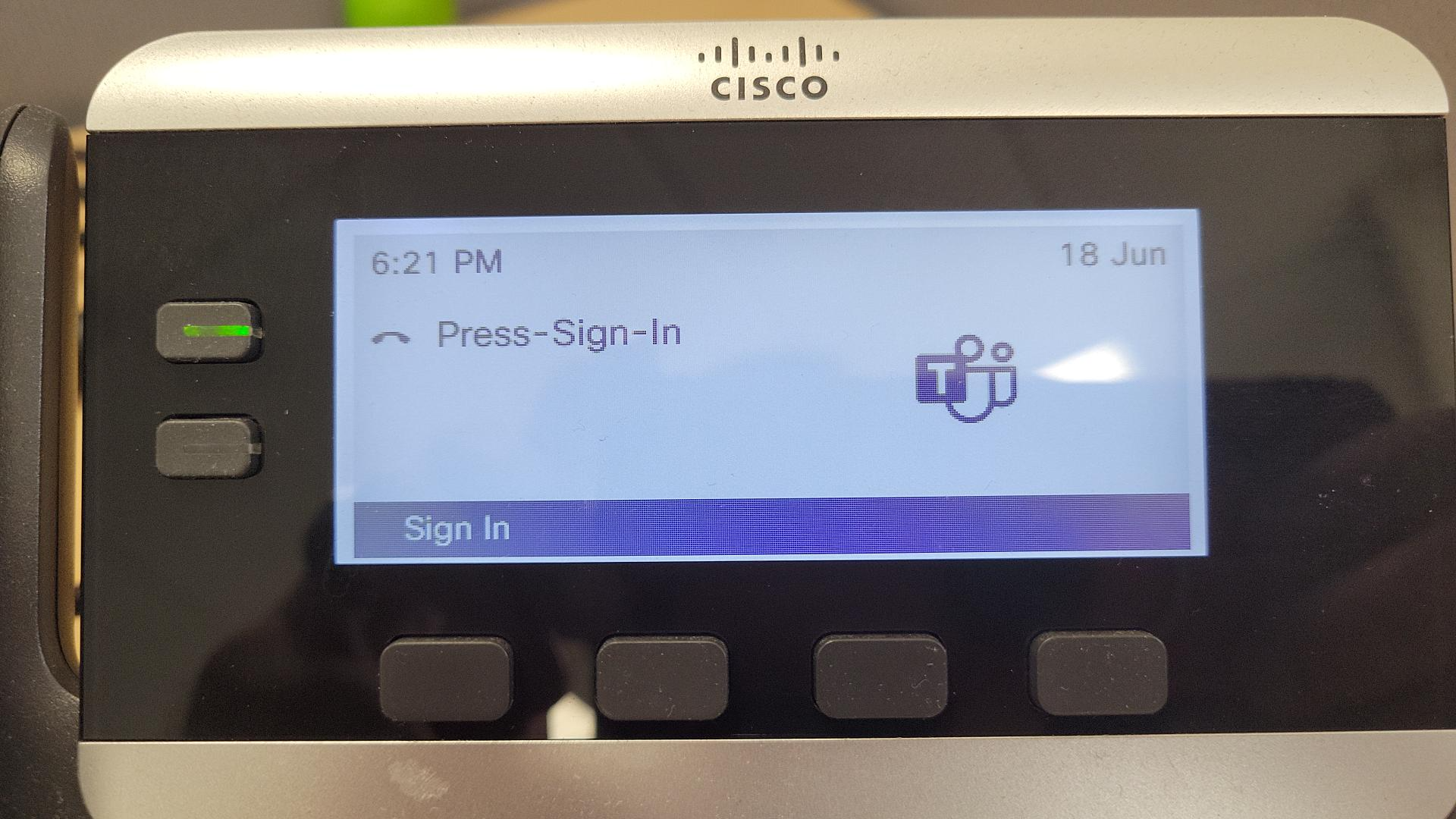
If no code appears, press the "Sign In" button on the phone.
Step 3: Open your browser
-
Go to this web address: aka.ms/siplogin (This loads a special page that pairs your computer with your office phone for Microsoft Teams Voice.)
Step 4: Log in
-
Type your school email address and password (the same one used for your college laptop or desktop). If your mobile phone asks to verify it's really you, tap "Approve" or select "Yes."
Step 5: Enter the code
-
Type the nine characters you on your desk phone in the browser. Click "Next."
Step 6: Confirm setup
-
Look at your desk phone again. Your name, four-digit extension, and today's date will now appear on the screen. Your phone is ready for calls with Microsoft Teams Voice.