This article shows you how to get school calls on your phone when Microsoft Teams is installed, plus how to let assistants answer your line when you're busy or away from campus.
Ringing Both Phones At The Same Time
When Microsoft Teams is installed on your phone or tablet and logged in with your college email, calls to your number send notifications directly to your device. These alerts appear even if other apps are open—email clients, messaging tools, or any background programs. Your phone will ring and display the call information so important messages from students arrive reliably, whether you're working in meetings, studying in classrooms, or traveling between campus buildings.
Letting an Assistant Answer Your Calls
Division Chairs and Deans often work with administrative assistants who help manage their schedules. If you have someone helping you, you can give them permission to answer your line when you don't pick up:
-
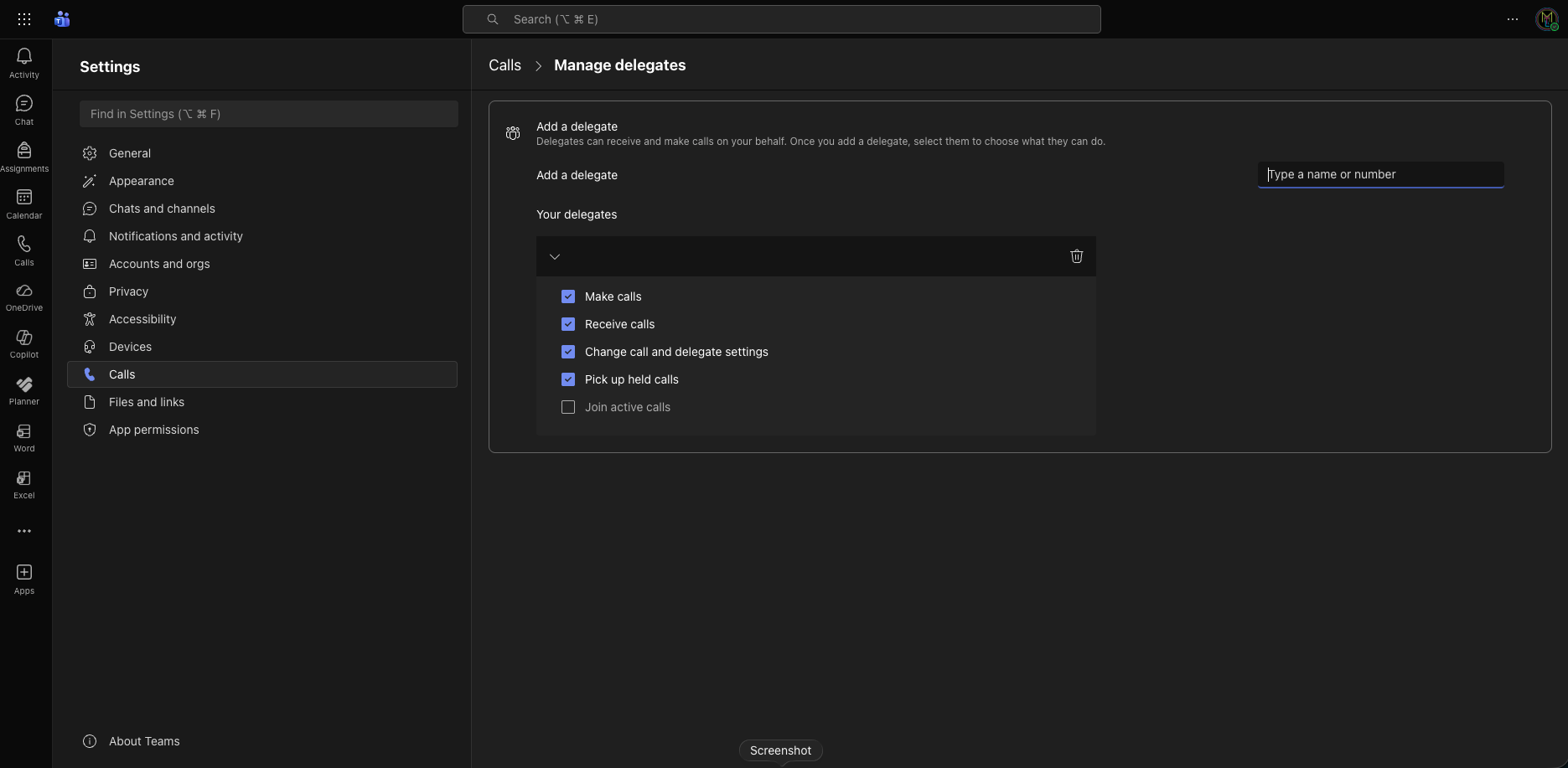
Open Teams Settings then Calls
-
Scroll down to Manage Delegates at the bottom of the page
-
Click Add a Delegate and type your assistant's name in the Type a name or number area
-
Check boxes for what they should be able to do:
-
Receive Calls (they can answer your line)
-
Make Calls (they can call people on your behalf)
-