
This article shows you how to use your personal cell phone for college calls without showing your own number. It also explains how to turn off work calls at dinner time or when sleeping, so you stay peaceful during family moments and restful weekends.
Installing the App
You can make official school calls from your pocket using Microsoft Teams. When students or others call you through this app, they see your college office name on their screen—never your personal phone number!
How to get it:
-
For iPhone go to: https://apps.apple.com/us/app/microsoft-teams/id1113153706
-
For Android go to: https://play.google.com/store/apps/details?id=com.microsoft.teams&hl=en_US
-
Sign in using your school email address and password—the same one you use for college computers and email.
-
Allowing Sounds: When the app asks if it can use your microphone or send alerts, tap Allow! If you turn these off, people won't hear your voice messages when leaving voicemails, and you might miss incoming calls when someone tries to reach your office line.
Keeping Peaceful Hours: Setting Up Quiet Time
Since your cell phone can now ring for school calls, it's important to tell the app when you want peace at home. You can set automatic windows where work calls go straight to voicemail instead of ringing during dinner or sleep time.
How to set quiet hours:
-
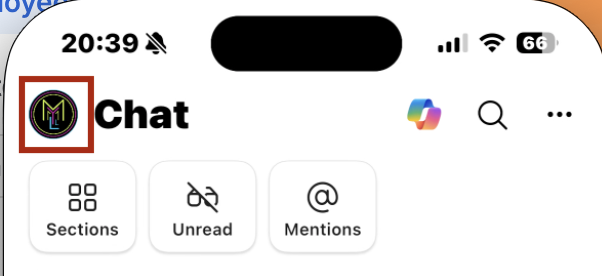
Open Teams on your phone and tap your Profile Circle (or initials) in the top-left corner.
-
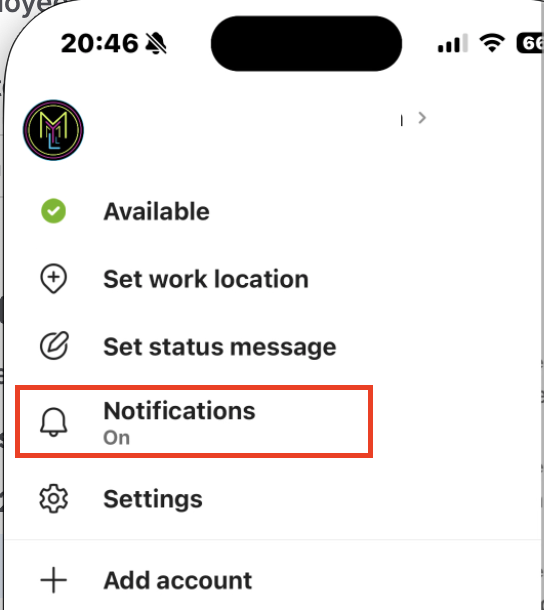
Tap Notifications.
-
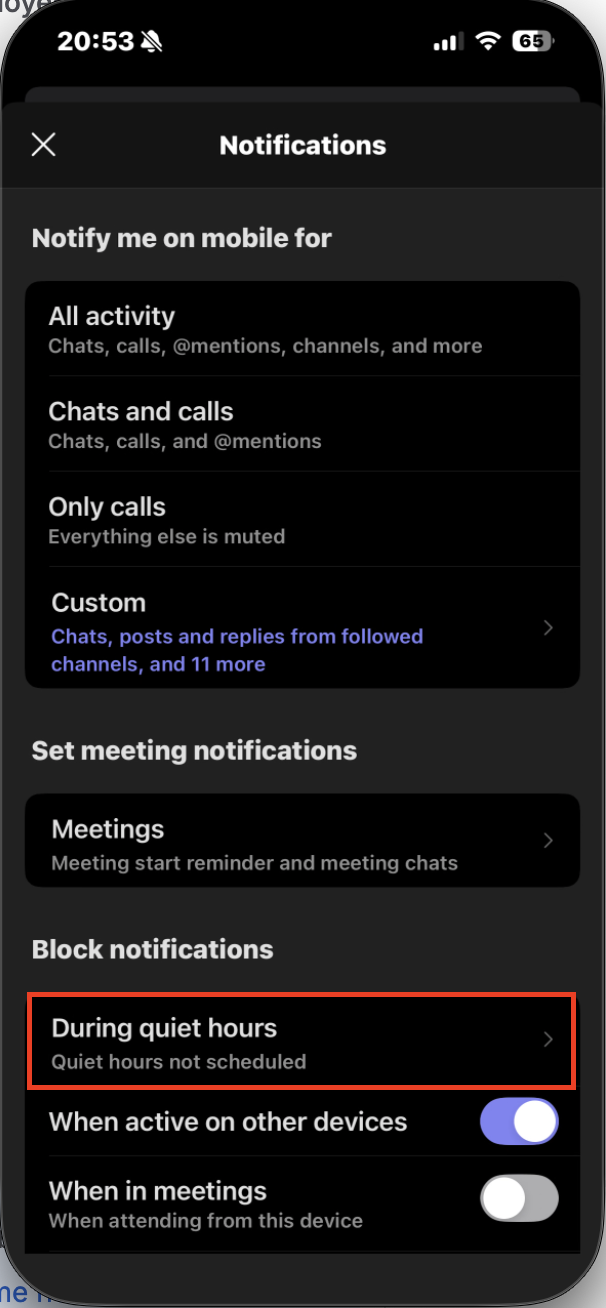
Under "Block notifications," tap During Quiet Hours.
-
Turn on Quiet Hours and pick your schedule—like from 5:00 PM until 8:00 AM when you sleep or eat dinner. During these hours, work calls are silenced and go straight to voicemail so your home stays peaceful. Your personal phone still rings for family and friends as usual!
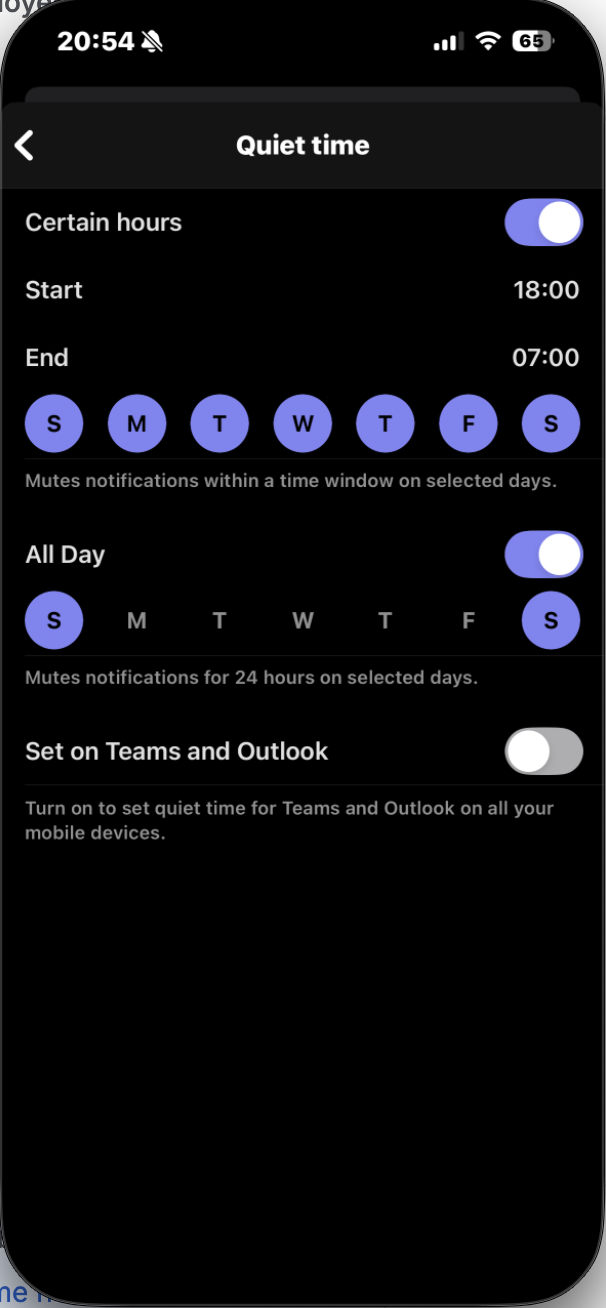
Turning Off Weekends Completely
You can also keep weekends work-free by turning on Quiet Days. Select Saturday and Sunday if you want no office calls during those days—perfect for playing with family or relaxing without phones ringing constantly.