
Use the built-in Report button in Outlook on the web to report junk and phishing messages
-
Users can report a message as junk from the Inbox or any email folder other than Junk Email folder.
-
Users can report a message as phishing from any email folder.
Instructions
In Outlook on the web, select one or more messages, select Report, and then select Report phishing or Report junk in the dropdown list.
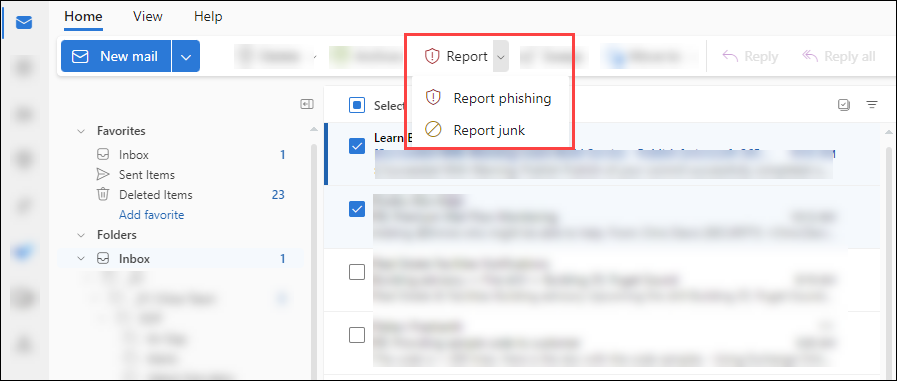
The following actions are also taken on the reported messages in the mailbox:
-
Reported as junk: The messages are moved to the Junk Email folder.
-
Reported as phishing: The messages are deleted.
Use the Report Message add-in to report junk and phishing messages in Outlook
-
Users can report a message as junk from the Inbox or any email folder other than the Junk Email folder.
-
Users can report a message as phishing from any email folder.
-
In Outlook, do one of the following steps:
-
Select an email message from the list.
-
Open a message.
-
-
Do one of the following steps based on your Ribbon Layout configuration in Outlook:
-
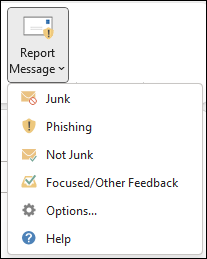
Classic Ribbon: Select Report Message, and then select Junk or Phishing in the dropdown list.
-
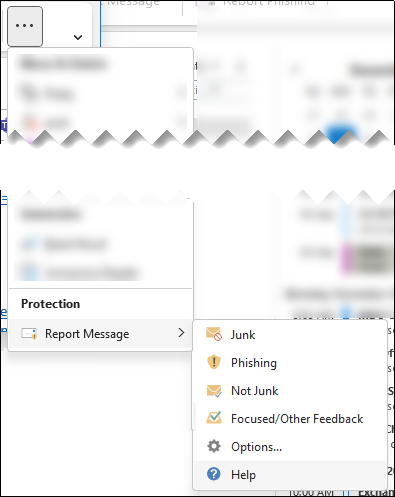
Simplified Ribbon: Select More commands > Protection section > Report Message > select Junk or Phishing.
-
The following actions are also taken on the reported messages in the mailbox:
-
Reported as junk: The messages are moved to the Junk Email folder.
-
Reported as phishing: The messages are deleted.