
This article provides a step-by-step instruction on how to set automatic email replies in Microsoft Outlook.
Outlook Web Application
-
In a web browser, sign in to email by going to https://my.pccc.edu > Everyday Tools > Office 365.
-
Click the settings button

Settings Icon and then Set automatic replies
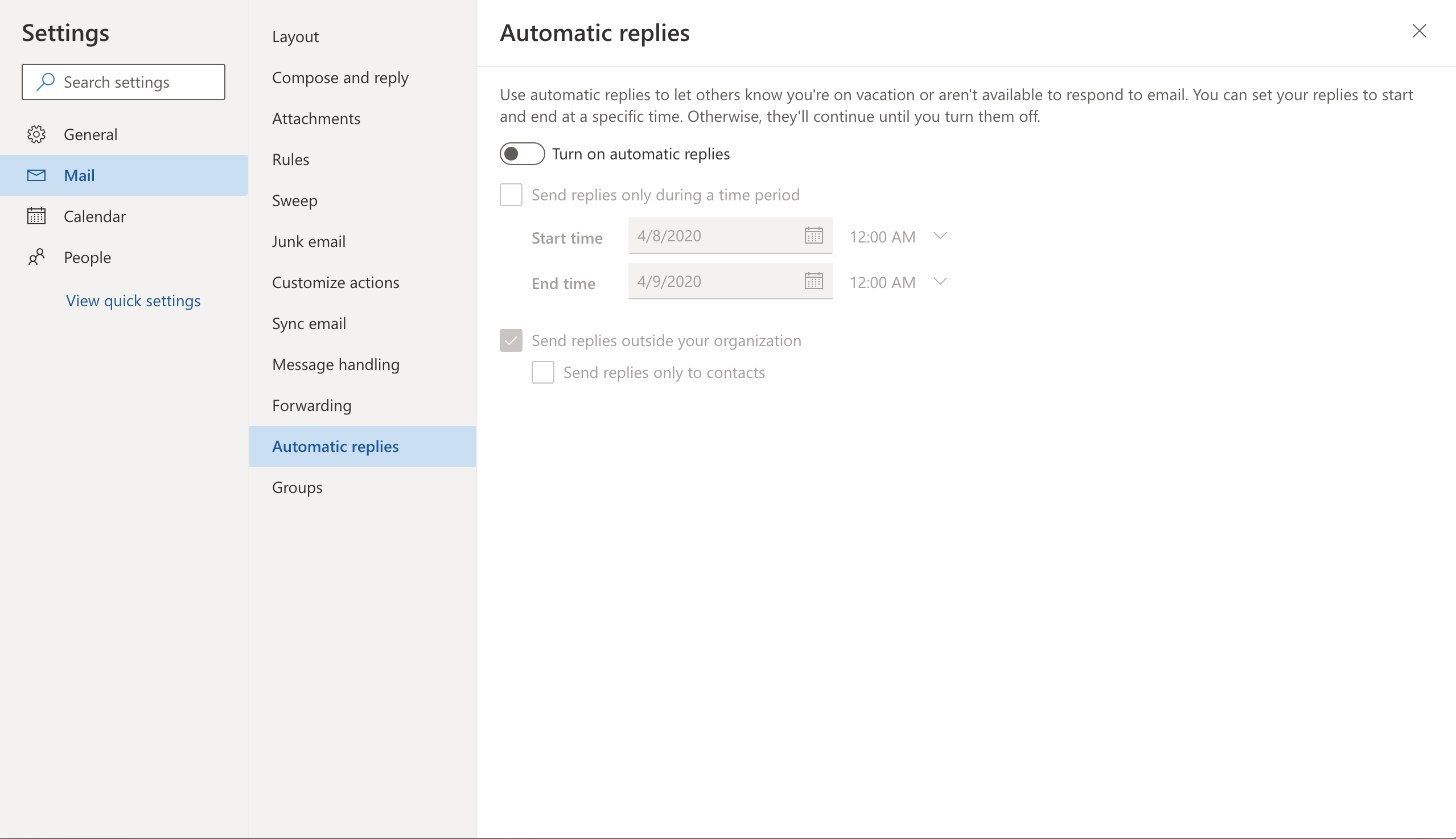
Automatic Replies Window
-
Click Turn on automatic replies and select the settings provided in the window.
Installed version of Office 365
-
Open Outlook
-
Click the File tab.
-
Then click the Automatic Replies(Out of Office) located in the Info Section.

-
Please note that replies differ between users inside and outside the organization. Pay close attention to the Tab.
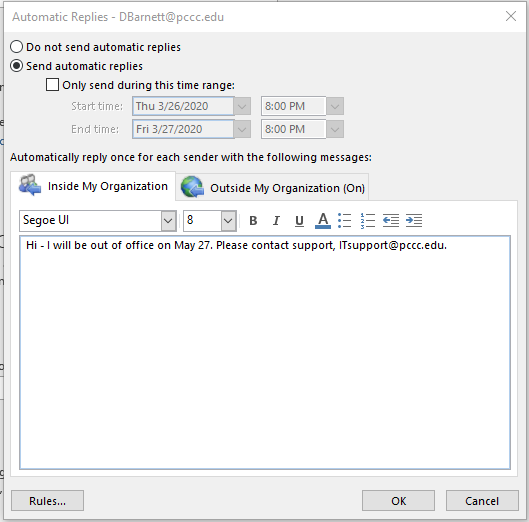
-
After populating the window with the necessary information, click OK.
Related Articles