
By following the steps provided in this section, you will be able to reset and change the password to your PCCC account.
Instructions
-
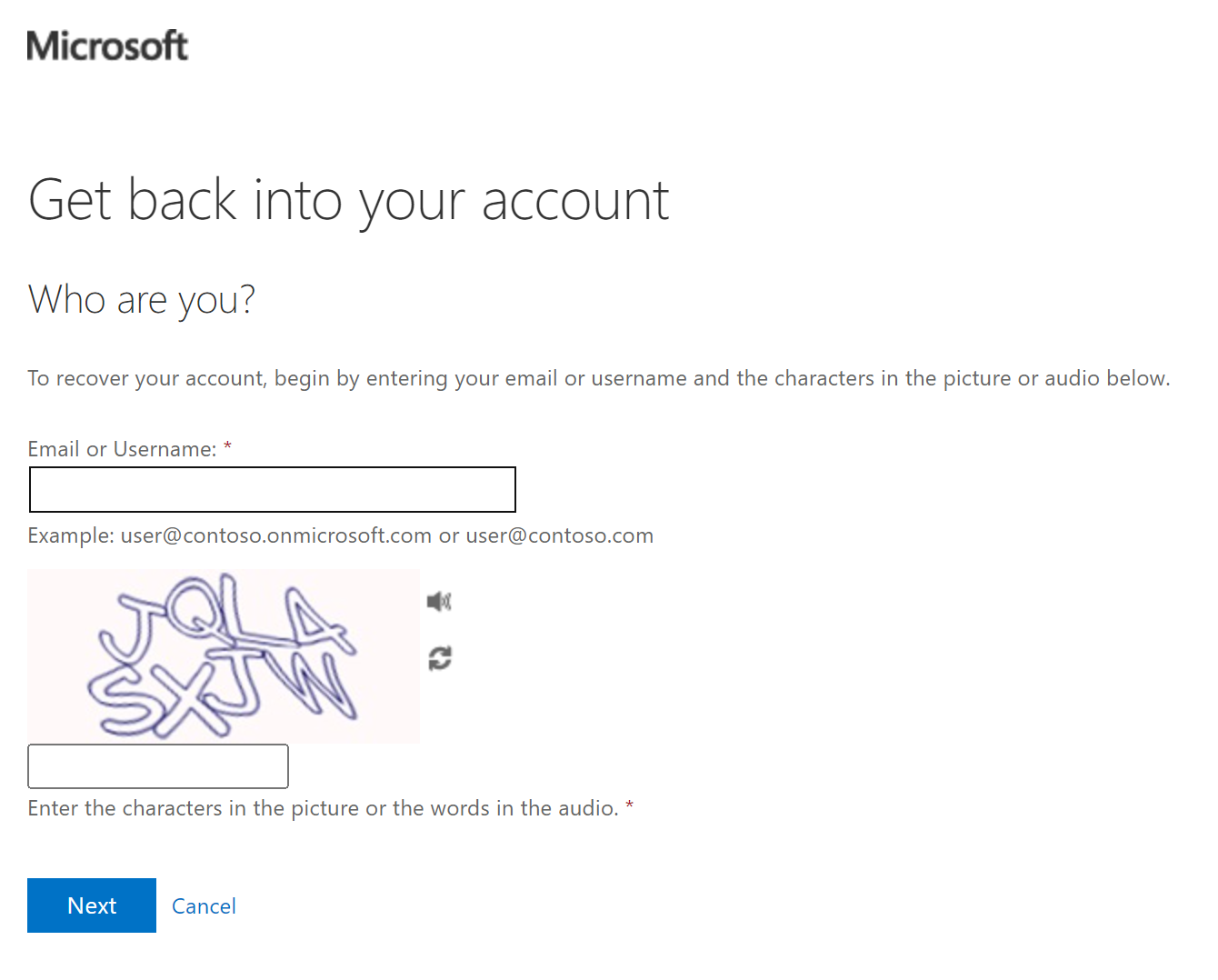
Please go to the Microsoft password reset page at https://aka.ms/sspr. The page will be titled “Get back into your account”.
-
Enter your PCCC Account Username in the space under “Email or Username”
-
ex: user@students.pccc.edu, user@adjuncts.pccc.edu, user@pccc.edu
-
-
In the space below the picture of letters and numbers, enter the characters in the picture you are provided.
-
To hear the characters out loud, click the audio button (

-
To get a new set of characters, click the refresh button (

-
-
After completing steps 2 and 3, click “Next”.
-
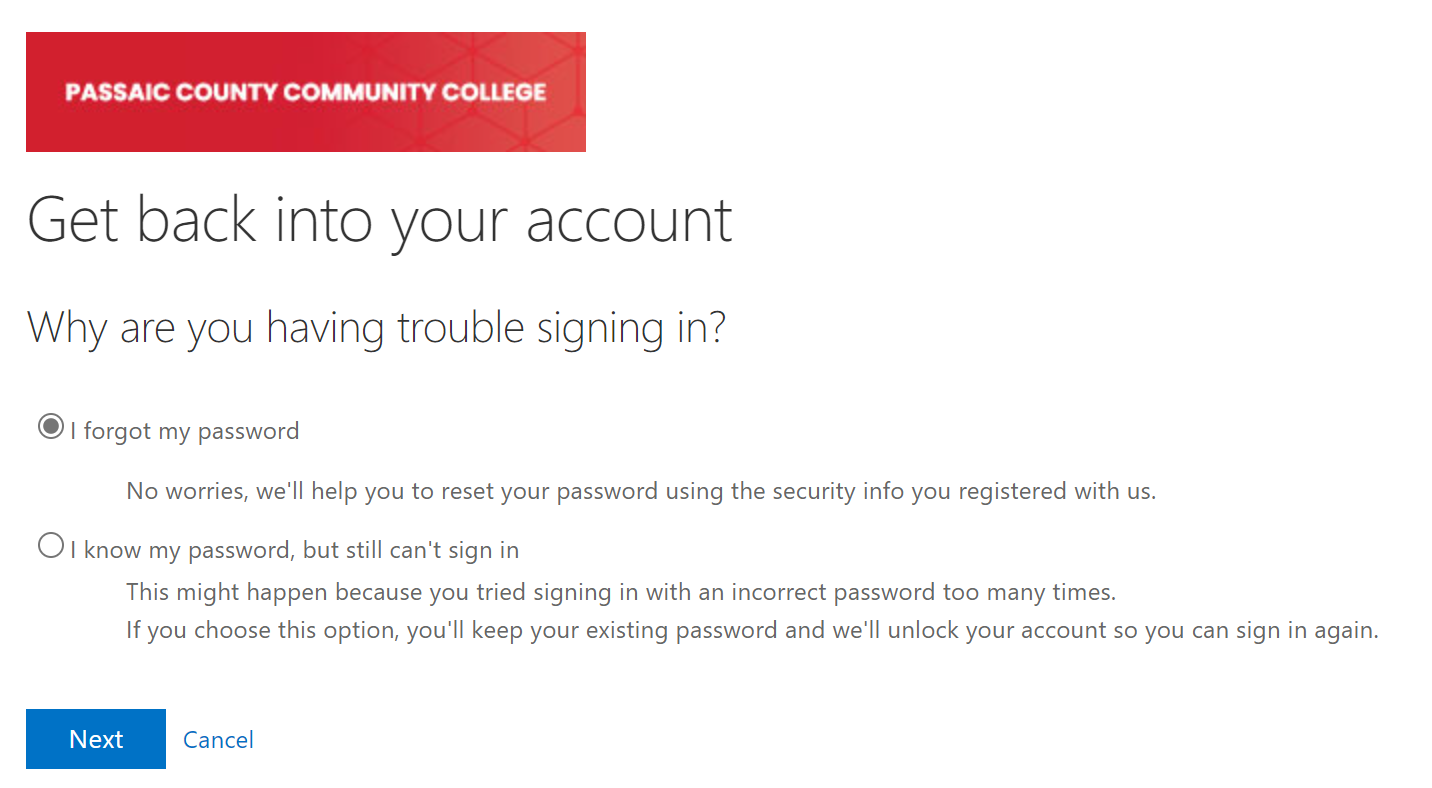
On the next page, make sure “I forgot my password” is selected and click “Next”.
-
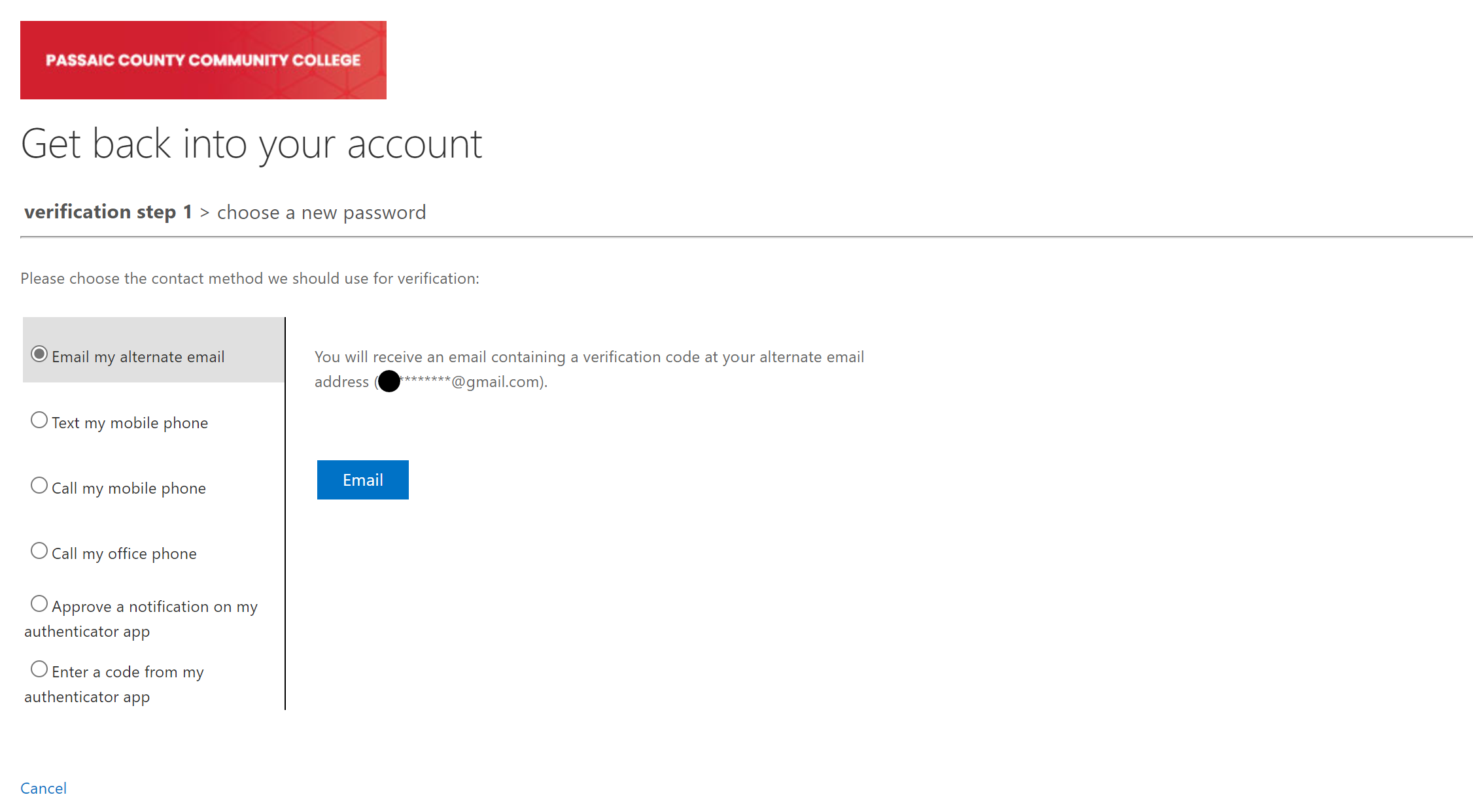
On the next page, for “verification step 1”, choose the verification method you would like to use to verify your account in the left panel.
-
Follow the directions on the right panel. Be sure you have access to the method you select.
-
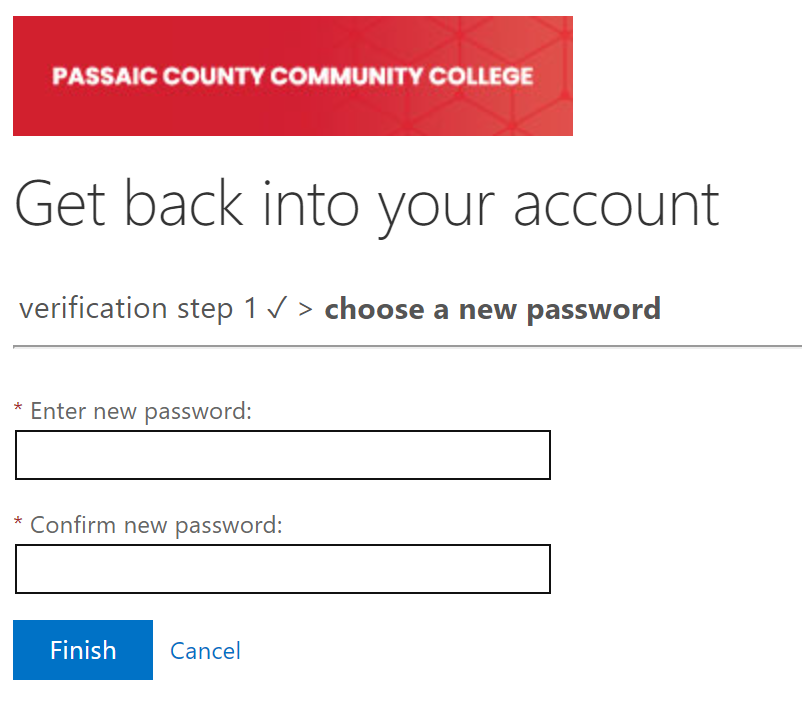
On the “choose a new password” section, enter your new password into the two given fields.
-
Click “Finish” to set your new password.
Passwords must be a minimum of 8 characters and require 3 of the 4 types of characters:
-
Lowercase characters
-
Uppercase characters
-
Numbers (0-9)
-
Symbols @ # $ % ^ & * – _ ! + = [ ] { } | \ : ‘ , . ? / ` ~ ” ( ) ; < >
📋 Related articles