
Overview
The free version of Adobe Acrobat allows users to digitally sign documents. Follow the instructions below to create or upload a digital signature and sign your documents.
This article is a snip of a larger set of feature called “Fill & Sign” For more information please visit:
https://helpx.adobe.com/reader/using/fill-and-sign.html for the full article
Instructions
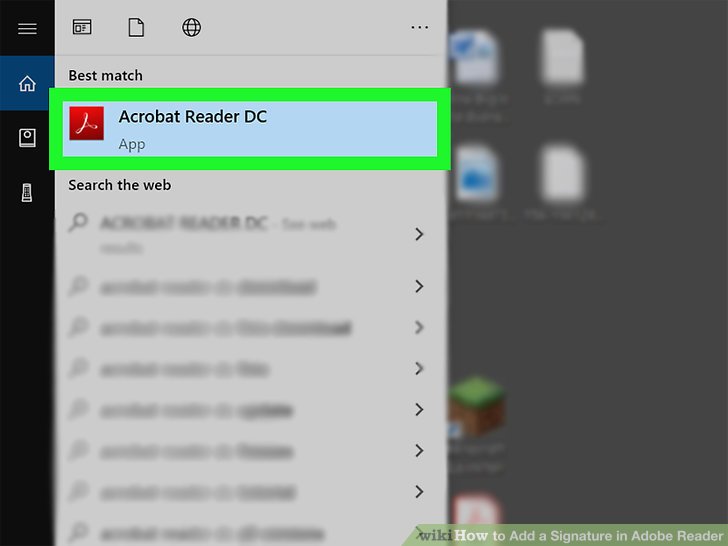
Open Adobe Acrobat Reader DC.
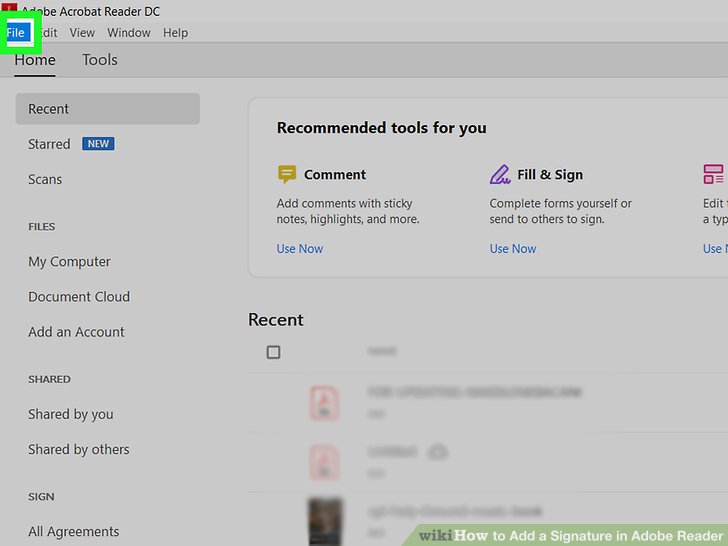
Click File. It's in the menu bar near the top-left corner of the screen.
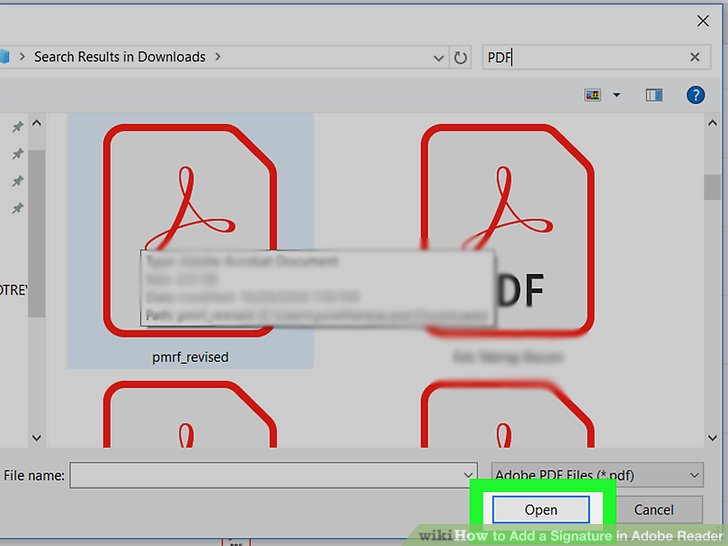
Select a PDF file and click Open.
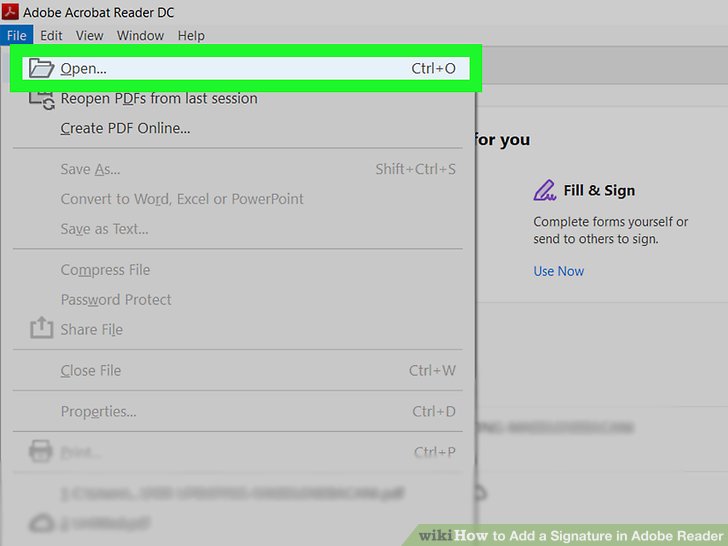
Select a PDF file and click Open
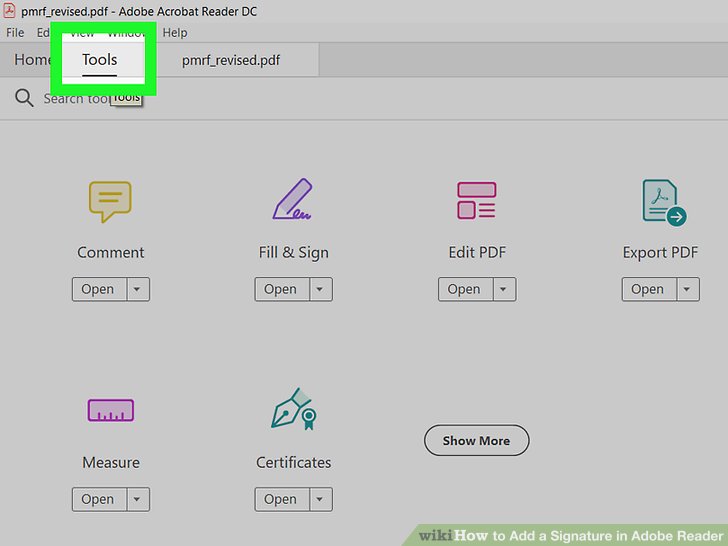
Click the Tools tab. It's the second tab at the top of Adobe Acrobat Reader DC below the menu bar at the top.
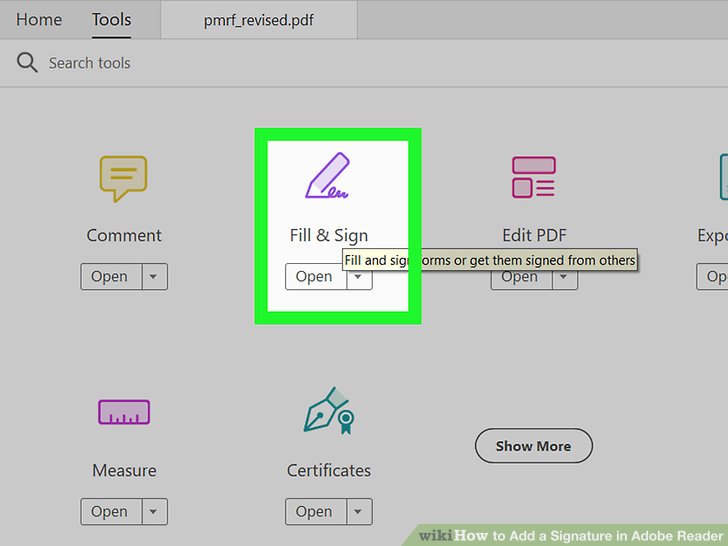
Click Fill & Sign. It's below a purple icon that resembles a pencil signing a signature.
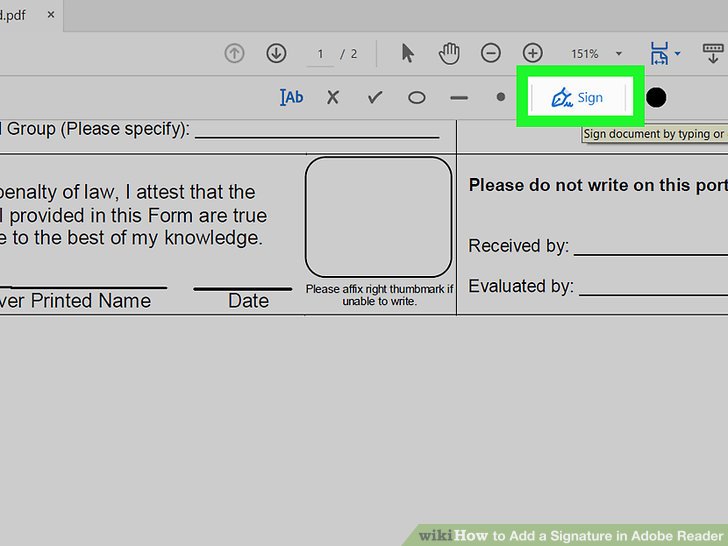
Click Sign. It's at the top of Adobe Acrobat Reader DC next to an icon that resembles the head of a fountain pen. This displays a drop-down menu.
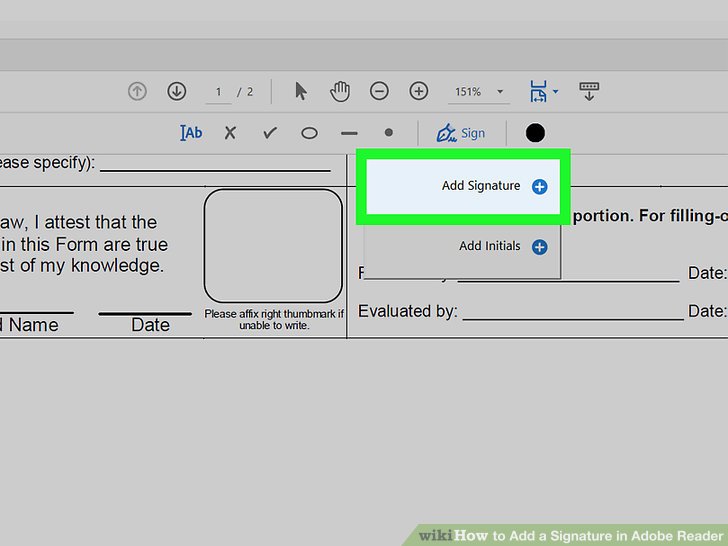
Click Add Signature. It's the first option in the drop-down menu.
Click Type, Draw, or Image. There are three methods for adding a signature. You can type your name, draw using your mouse or touchscreen, or you can upload an image of your signature. Click your preferred option at the top of the window.
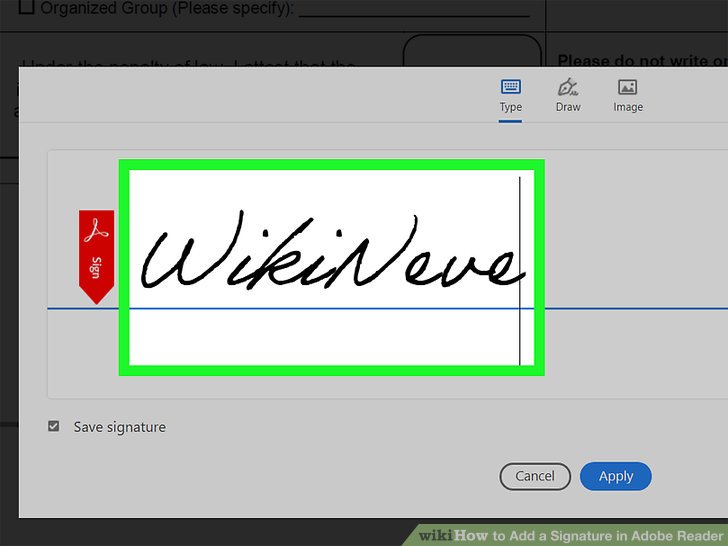
Add your signature. Add your signature using the following steps, depending on you the method you choose:
Type: Simply use the keyboard to type your full name.
Draw: Click and drag to draw your signature on the line using your mouse.
Image: Click Select Image. Then select an image file containing your signature and click Open.
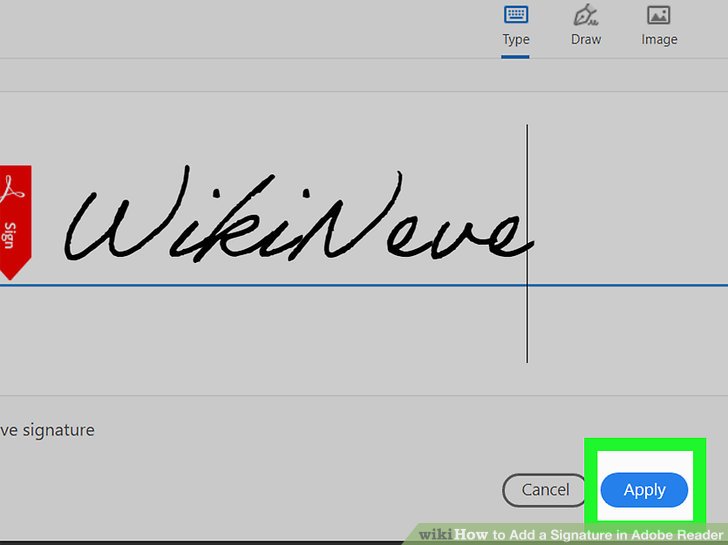
Click the blue Apply button. It's at the bottom of the window.
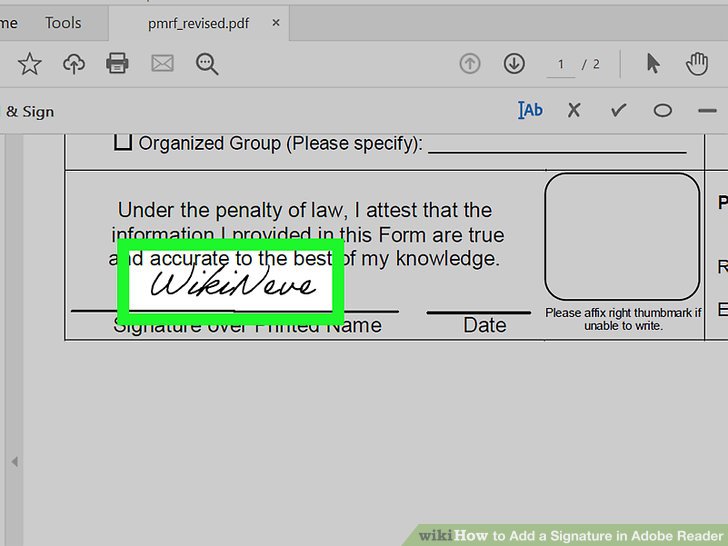
Click where you want your signature to go. This adds your signature to the PDF file.
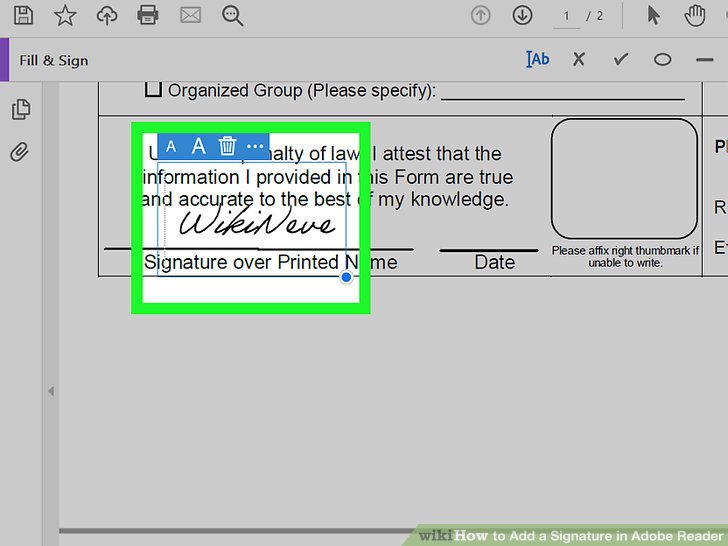
Click and drag your signature to move it. To make your signature bigger, click and drag the blue dot in the lower-right corner of your signature.
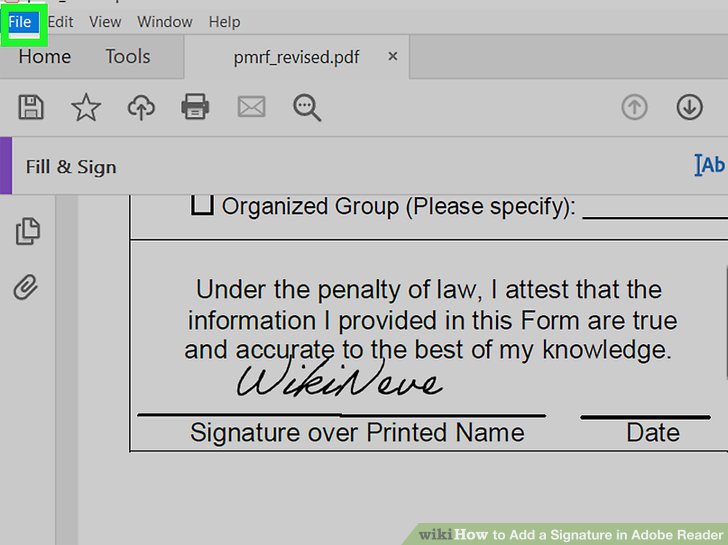
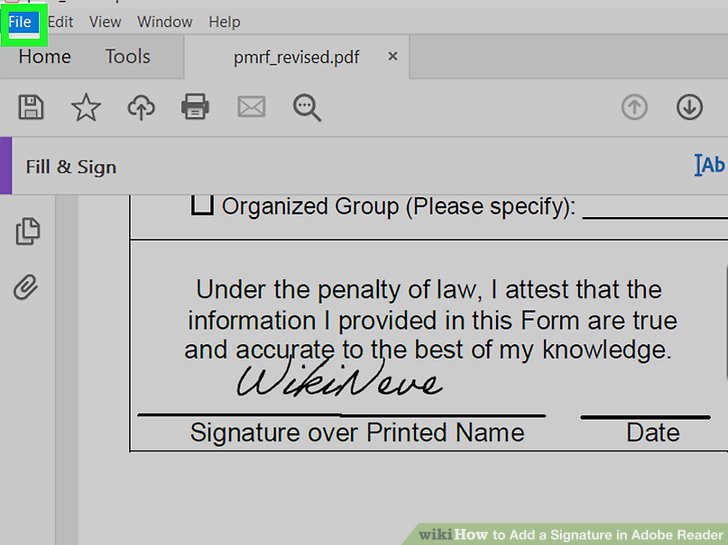
Click File. It's in the menu bar at the top.
Click Save. This saves the PDF file with your signature. Or Save As , if prefer to save on different destination location.
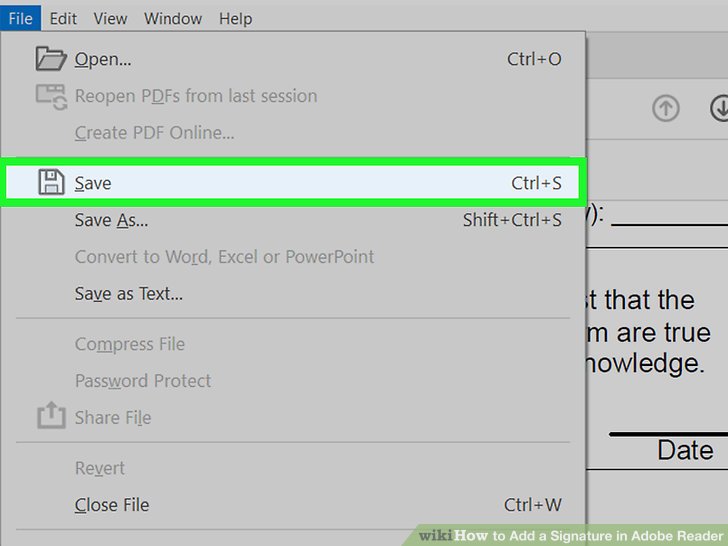
Click Save. This saves the PDF file with your signature.